
Navigate360Ìýcombines technology, research, process improvement and predictive analytics to enable proactive, data driven conversations with students. By leveraging student data, predictive analytics can suggest what courses are problematic for which students, what is the expected likelihood of success for students who perform at certain levels in specific courses or major, what additional options for success are suitable for students based on their current performance. Early identification and use of this information can positively affect student outcomes.
Jump to Navigate for:
Student Resources
Navigate360Ìýis a student-focused appointment and support tool that will help keep you on the path toward academic success and timely graduation. The mobile app and desktop application give you the tools you need to make the best decisions to timely complete your education.
Download “Navigate Student” app
Access the desktop version
- Go to theÌý
- Download and install the app
- Open the app and search for your College name as your school or institution
- Log in using your ³Ô¹ÏÊÓƵfirst Login credentials
- Answer a short survey to personalize the app
- Allow push notifications for upcoming reminders
Students must opt in to receiving notifications from Navigate Student to receive the notifications.
Students can set their preferences by selecting Settings > Notification Settings.
- Open the “waffle� menu ()at the bottom of your screen.
- Select ‘account’
- ÌýSelect notification settings’
- Add your phone numberÌý
IMPORTANT:
- Email notifications areÌýsent fromÌýnoreply@navigate.eab.comÌýÌý
- All text messages come from a toll free number,Ìý855-480-0746. You cannot respond to text messages generated from Navigate Student.
- Sign in to Navigate AppÌýusing yourÌýCUNYlogin, via the Ìý.
- Go to “Schedule an Appointment.� (In the mobile app version, click “Appointments� and then “Schedule an Appointment.� In the web browser version, just click “Schedule an Appointment.�)
- Select your appointment type. Then choose from available days/times and schedule your appointment.
- Log into theÌýNavigate Student mobile app or the desktop version
- Tap/click appointments
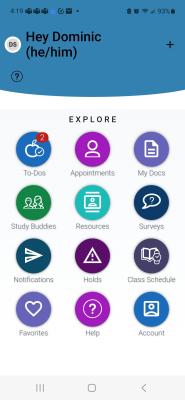
- Under “Upcoming�, select the appointment you would like to cancel.
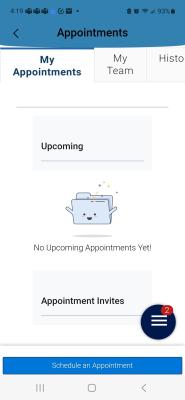
- Tap/click “Cancel Appointment
- Select a reason for the cancellation form the drop down menu.
- Enter a comment (optional)
- Tap/click “Cancel Appointment�
Your Student Center is the most up-to-date place to confirm your class schedule. Classes in Navigate360 update every 24 hours. If you just added or dropped a class, it may take one day to update.
If you added your class schedule to your calendar app on your phone, you will need to manually update the calendar to reflect your recent change. Log into your Navigate360 app and manually add the class to your calendar (one by one or all again).
Try a hard close and relaunch the app.
- For iOS, double click the Home button then swipe the app preview away to hard close.
- On Android, open the app manager view and slide the app preview away to hard close.
Faculty and Staff Resources
Faculty and Instructors
Faculty and instructors utilize Navigate360 to submit progress reports and make referrals for students to get connected to our campus resources!
To learn more about using Navigate360 as an instructor, please visit the . You can log in using your ³Ô¹ÏÊÓƵFirst login credentials.
Staff
Advisors utilize Navigate360 to monitor and document their students’ progress!
Additional help is available within the Navigate360 platform by clicking on the question mark icon in the upper right screen.
Navigate for Faculty and Staff Advisors
Navigate360 is a tool that helps streamline communications with students, schedule appointments, and resolve minor issues before they escalate. As part of the collective effort to improve student outcomes, the college is encouraging all faculty to start using Navigate360.
Features of Navigate360 include:
- Appointment System
Sync your calendar to display appointment availability. Options for drop in appointments and queues - Summary Reports and Notes
Manage caseloads and keep a detailed record of student progress and roadblocks. - Campaigns
Proactive outreach to a population in need of a specific intervention or action. - Progress Reports
Submit in-semester feedback on the progress of students in a course. - Communication
Email or text an individual or group of students. - Student Search and Lists
Advanced search capabilities with multiple variables. Pull as well as upload student lists.
Navigate360 helps improve retention and graduation rates by identifying areas of additional support needed for students to complete their degrees and streamlines communication with students. Using Navigate360, you can:
- Prioritize outreach and interaction with your students.
- Find a list of your majors and minors in seconds
- Reach students using a granular-level advanced search.
- Efficiently email or text an individual or a group of students.
- Easily communicate with students in various cohorts
- Simplify intervention by aggregating previously disparate data into a 360-view of the student.
- Proactively contact students to arrange advising or other student support services.
- Send early alerts to discuss academic performance with students.
- Easily keep shared academic advising notes.
Data is pulled from ³Ô¹ÏÊÓƵfirst in a nightly run, starting at 6pm.Ìý Any changes made to a student’s record by 6pm, will be reflected in Navigate the following day.
Yes, student notes in Navigate are part of a student’s educational record and subject to FERPA and subpoenas.
You will use your CUNYlogin username and password.
Navigate uses the Preferred Email address captured in ³Ô¹ÏÊÓƵfirst for students. CUNYemployees will use their official CUNYemail address.
All students are automatically opted in to text messaging. Texts will be sent to the preferred phone number being sent from ³Ô¹ÏÊÓƵfirst.
If students do not have a working cell phone number in ³Ô¹ÏÊÓƵfirst, texts will be sent from Navigate to their Preferred Email address.
Users can have multiple roles in Navigate. Users will be assigned all the roles for which s/he is qualified at the point of a given extract.
The course enrollment data for each college (ePermit courses, program of study, etc.) will be available in the site for that campus. User-entered data (notes, appointment summaries) will reside in the college site into which it was input and will not be shared across sites.
No, it will not be displayed. Since major GPA is not stored in ³Ô¹ÏÊÓƵfirst, this cannot be displayed in Navigate. It will still be available through DegreeWorks.
Yes, transfer credits are included. GPA is calculated in ³Ô¹ÏÊÓƵfirst and uploaded into Navigate on a daily basis.
A category is a group of students that colleges may wish to track or communicate with; students may belong to several different categories. Every college created a set of categories as part of its implementation process based on what it deemed most useful for its Navigate site.
New Navigate category requests can be submitted once they have been approved by the college’s leadership. The steps for making a new category request are:
- Obtain approval by academic leadership (following local governance processes)
- Work with college Navigate360 Application Admin to fill out the Category Request form
- The college help desk will submit the request to the Office of University Registrar (OUR). OUR will work with CIS/EAB to add the new category. Estimated time for category requests to be processed is 15 to 30 business days.Ìý
Navigate change requests should be submitted to your college help desk with the Change Request form which will then be submitted to OUR. Some types of change requests might include changes in logic, in the name or description of a category, or removal of a category. For example, you may wish to change how student information appears in the Navigate site, whether as a category or a particular data field.
Change requests will be submitted to Office of University Registrar by the college Application Admin. The steps are:
- Work with college Navigate360 Application Admin.
- Fill out the Change Request form. Please be sure to fully explain the problem and logic for the change in the detail field in the form.
- The Application Admin will submit the request toÌýOUR. OUR will work with CIS/EAB to make the change. Estimated time for change requests to be processed is 30 to 35 business days.
Roles and permissions, which vary amongst campus users of the Navigate system, are determined by the college’s EAB leadership team and are automated in the Navigate system.
Navigate users, including students, faculty, and administrators, are all assigned roles in Navigate; some users may have multiple roles. To issue a new role or add a user, please complete an EAB User Access Request form. The most up-to-date version of this form can be found on the ³Ô¹ÏÊÓƵfirst (PeopleSoft) Security web page under Forms: Campus Solutions.
New campus-level roles can be assigned by the college help desk or ASL (Application Security liaison). No Central Office approval is required but a form must still be submitted.
Note: every college has an ASL and standard procedures for submitting items to the ASL. If you don’t know how to do so please consult your Navigate administrator.
Most roles can be issued locally without Central Office approval. See the user role chart with descriptions attached to the EAB User Access Request form. The most up-to-date version of this form can be found on the ³Ô¹ÏÊÓƵfirst (PeopleSoft) Security web page under Forms: Campus Solutions.
The process for requesting access to Navigate or the addition of a new role is:
- All new Navigate users must receive FERPA training at their colleges prior to receiving an account and login information.
- The help desk must submit a completed EAB User Access Request form along with a CRM for all new users for purposes of auditing and tracking. The most up-to-date version of this form can be found on the ³Ô¹ÏÊÓƵfirst (PeopleSoft) Security web page under Forms: Campus Solutions.
- For high-level role requests, the form and CRM must be submitted to OUR.
College accounts are typically created within 1-2 business days. Requestors will receive an email once the request has been processed by the campus ASL. Navigate uses CUNYlogin credentials. (FirstName.LastNameNN@login.cuny.edu)
Once a ³Ô¹ÏÊÓƵfirst account is set up, user role data will be transmitted to Navigate for automated provisioning. Estimated time for resolution is 1 – 2 business days.
Users can have multiple roles in Navigate. Users will be assigned all the roles for which s/he is qualified at the point of a given extract.
Student Profile
What:ÌýThe Student Profile shows key details about a student. The Overview is the main tab of the profile.
Where:ÌýTheÌýOverview tabÌýis what you see when you open aÌýStudent Profile.
Who:ÌýStudent Profiles giveÌýstaffÌýandÌýfacultyÌýquick insight into the student’s performance and potential needs.
Conditions:Ìý In order to view the Overview tab, staff and faculty must haveÌýpermissionÌýto view student profiles and to view the Overview tab on the Student Profile. Specific information within the Overview tab, such as the 30-Second Overview, student IDs, and student categories is also permission-based.
What:ÌýTheÌýCoursesÌýtab of the student profile contains detailed historical and current course information for that student.
Where:Ìý The Courses tab is located within an individualÌýstudent’s profile.
Who:Ìý The Courses tab providesÌýstaffÌýandÌýfacultyÌýwith a view of the student’s current course enrollment, current course assignments, and unofficial record of all coursework attempted by the student.
Conditions:Ìý Access to the Courses tab isÌýpermission-basedÌýby user role. Access to the Assignments This Term section within the tab is also permission-based, as are specific actions within the Courses tab.
What:ÌýThe HistoryÌýtabs of a Student Profile provide staff and faculty with a view of all recorded activity for a student. This includes Appointments, Alerts, Cases, Reminders, Notes, Appointment Summaries, and Progress Reports. Your institution decides which version of this page that you see.
Where: The HistoryÌýtab is part of aÌýstudent profile. If your institution enables the History tab, it shows.
Who:Ìý The History tab is helpful for staffÌýandÌýfaculty.
Conditions:Ìý Access to the or History tab is permission-based by user role. Only one of these tabs is visible at your institution. The level of detail and actions available within the tab are also permission-based.
Where:ÌýÌýTheÌýConversationsÌýtab is located within an individualÌýstudent’s profile.ÌýAccess it by clicking the tab calledÌýMoreÌýtowards the top of the profile screen, and then selectingÌýConversations.
Who:Ìý The Conversations tab providesÌýstaffÌýandÌýfacultyÌýwith all communications to and from the Navigate360 platform for that student.
Conditions:Ìý Access to the Conversations tab is permission-based by user role. The types of messages available to view within the tab are also permission-based.
What:ÌýThe Student ProfileÌýCalendarÌýtab provides a view of the student’s calendar to staff.
Where:Ìý TheÌýCalendarÌýtab is located within an individual student’s profile, accessible by clicking theÌýMoreÌýtab and then selectingÌýCalendar.
Who:Ìý The Calendar tab providesÌýstaffÌýandÌýfacultyÌýwith a view of all scheduled appointments for that student.
Conditions:Ìý Access to the Calendar tab is permission-based by user role. The level of detail and actions available within the tab are also permission-based.
Navigate Council
The Navigate Council is comprised of administrators that serve as Navigate leaders for their college. Faculty and staff that have inquiries about Navigate at a particular college can direct inquires to these staff. An asterisk (*) denotes Council co-leads.
| College | Name | Title |
| Baruch College | Sharon Ricks | Executive Director, Office of Undergraduate Advisement |
| Baruch College | Nicolas Sulicki | Associate Director, Student Success |
| Baruch College | Serra Hilaire | Associate Director, Office of Undergraduate Advisement |
| Borough of Manhattan Community College | Janice Zummo | Associate Dean of Academic Affairs for Academic Support Services |
| Borough of Manhattan Community College | John Huie | Manager of Academic Programs |
| Bronx Community College | Francisco Legasa | Assistant Dean for Academic Affairs |
| Bronx Community College | Octavio Melendez | Director, Academic Success Center |
| Brooklyn College | Tracy Newton | Executive Director, Student Success Center |
| Brooklyn College | Estefania Ponti | Associate Dir. of Student Success & EAB Navigate Manager |
| Central Office | Kara Heffernan (Council Facilitator) | University Dean of Student Success Initiatives |
| Central Office | Nathaniel Scott-Reichel | University Director of Student Success Platforms and Data Strategy |
| City College | Melissa Oden | Interim Chief Academic Advisor |
| City College | Vishal Bodawala | Assistant Director of Student Success and Retention |
| College of Staten Island | Ronald Gray | Assistant Provost for Student Success |
| College of Staten Island | Veronica Dimeglio | Curriculum Coordinator, College Curriculum Office |
| CUNYSchool of Labor Studies | Rochel Pinder | Director of Student & Community Affairs |
| CUNYSchool of Labor Studies | Steve Greenfeld | Retention and Prior Learning Assessment Manager |
| CUNYSchool of Law | Johnathan Vela Enriquez | Director, Registrar |
| CUNYSchool of Law | Midiam Ramirez | Executive Director of Academic Affairs |
| CUNYSchool of Law | Paul Cabrera Chaunay | Academic Affairs Manager |
| CUNYSchool of Professional Studies | Angela Francis | Assistant Dean of General Education and First Year Experience |
| CUNYSchool of Professional Studies | Benson Toi | Admissions Coordinator |
| Guttman Community College | Chris Roth | Associate Director of Academic Technology |
| Hostos Community College | Sarah Brennan | Executive Assistant to Vice President and Provost |
| Hunter College | Rebekah Amada | Associate Director for Student Success Systems |
| Hunter College | Brian Buckwald* | Associate Dean for Student Achievement |
| Hunter College | Chloe Rinehart | Institutional Research Specialist |
| John Jay College of Criminal Justice | Kate Szur* | Associate Dean for Student Success and Innovation |
| John Jay College of Criminal Justice | Will Stevens | Associate Director for Data Analysis and Retention |
| John Jay College of Criminal Justice | Danielle Bouza | Navigate 360 Administrator |
| Kingsborough Community College | Avery Mullen | Registrar |
| Kingsborough Community College | Andrew Bartholomew | Enrollment Registrar Manager |
| LaGuardia Community College | Josh Goldblatt | Director, Academic Advising Initiatives |
| Lehman College | Juan Luna | Director, Enrollment Communications and Technology |
| Lehman College | Juan Villalona | Associate Director, Enrollment Technology |
| Medgar Evers College | Jesse Kane | ÌýSenior Vice President, Student SuccessÌý and Enrollment Management |
| Medgar Evers College | Karen Mitchell | IT Academic Tech Manager, Office of Academic Affairs |
| NYC College of Technology | Kim Cardascia | Administrative Executive Officer for Academic Administration and Special Projects |
| NYC College of Technology | Emma Shelefka | Interim Director of Student Academic Systems Integration |
| NYC College of Technology | Robert Spataro | Academic Systems & Business Specialist |
| Queens College | Sean Pierce | Assistant Vice President for Student Affairs |
| Queens College | Ahmad Sims | Associate Provost for Innovation and Student Success |
| Queens College | Renae Wooten | Director of Engagement and Success CRM Services |
| Queensborough Community College | Stephen Di Dio | Vice President and Chief Strategy Officer |
| Queensborough Community College | Brian Mitra | Vice President for Student Affairs and Enrollment Management |
| Queensborough Community College | Adam Volin | Director, Strategic Initiatives and Digital Transformation |
| Queensborough Community College | Angelica May | Director of Marketing |
| York College | Theresa Willams | Director of Academic Affairs |
| York College | Reginald Madden | Manager, York Early College Program |

